
Please visit our channel & subscribe: https://youtube.com/dhakawebhost
Step 1: Login into your cPanel.
Step 2: Look for Softaculous and click on it. In the next screen you should see Open Carts logo in one of the boxes. Click Install.
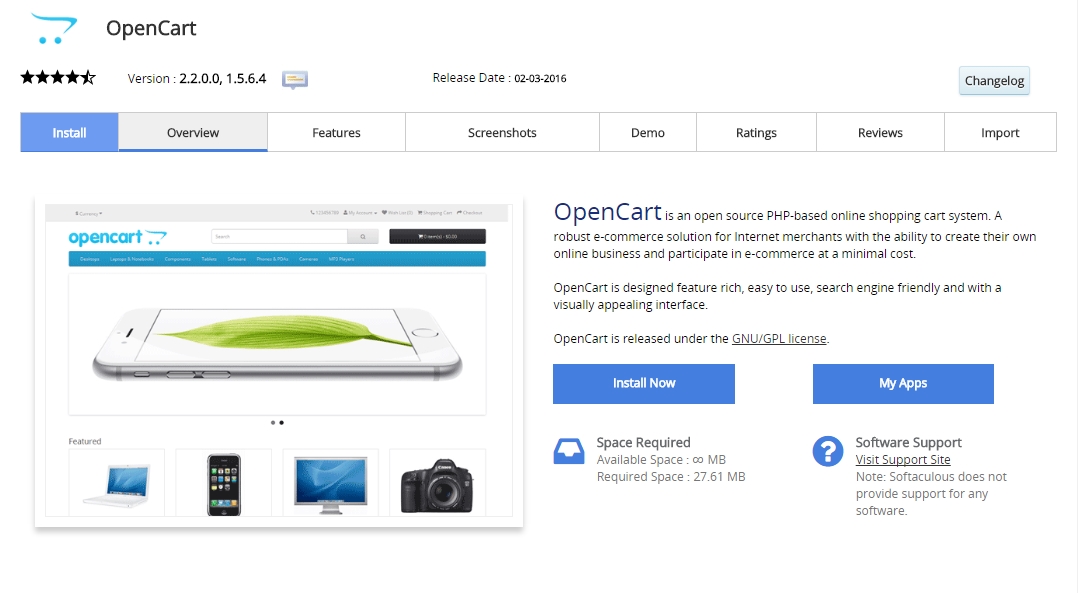
Step 3: Fill in the following information:
This is the most important step at which you should configure the new Magento application. Most of the fields are automatically filled in by the installer and you don't need to change them.
However, we advise you to change the text in the following fields:
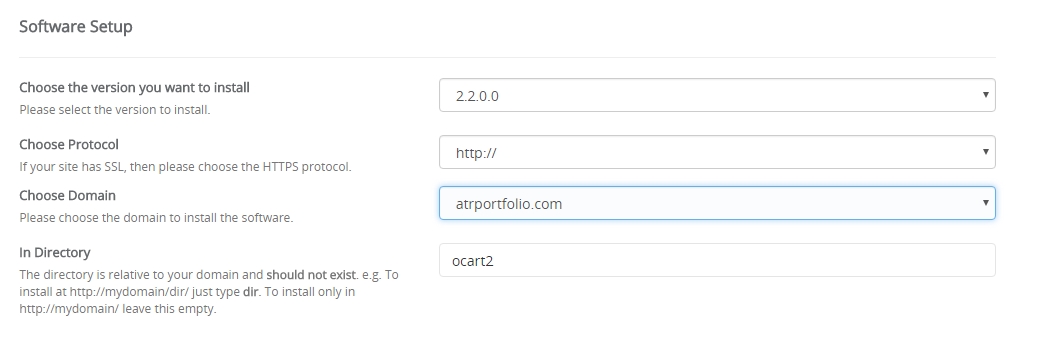
Software Setup:
> Choose Domain: Select the domain you want to install Open Cart on.
> In Directory: Leave this blank to install Open Cart in the document root directory of the domain you selected. Enter a folder name if you want your Open Cart installed in a subfolder.
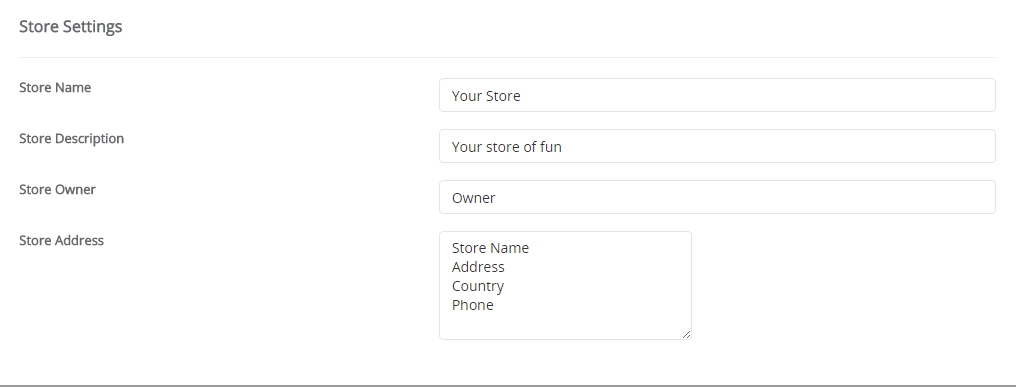
Store Settings:
> Store Name: Your store name
> Store Description: Provide some information about your store
> Store Owner: Store owner name
> Store Address: Store address
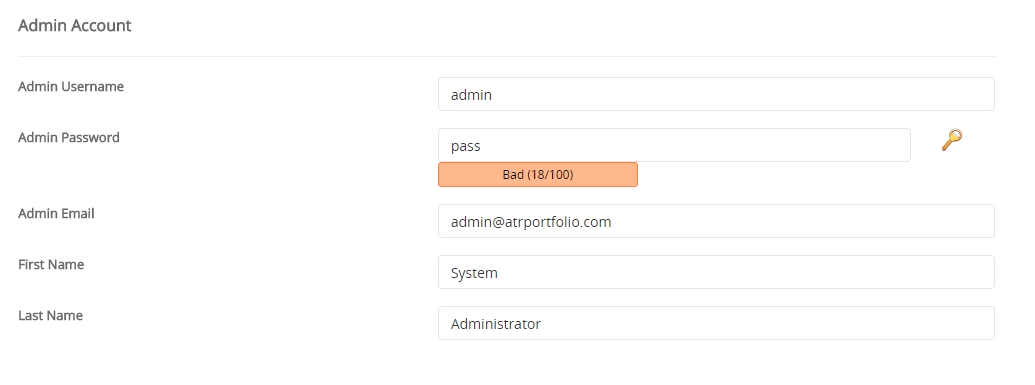
Admin Account:
> Admin Username: This is the username you will use to log into your Administrator Dashboard for your Open Cart.
> Admin Password: The Open Cart Administrators password.
> Admin Email: This needs to be a valid email address. Make sure you fill this out otherwise softaculous will automatically create a email that is not valid.
> First Name / Last Name: This is a different name than the Open Cart Administrators login.
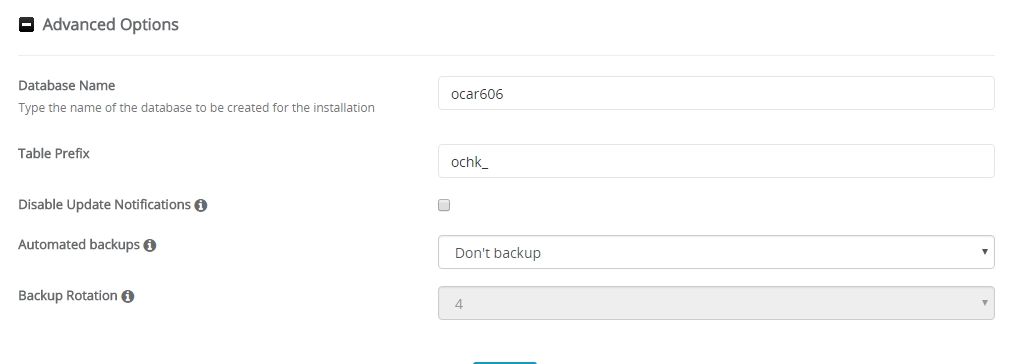
Advance Options:
> Database Name: A default database name will given there. You can change the database name or use the default name.
[NB]: Database name cannot be greater than 7 letters. Please choose a shorter database name.
[NB]: Don't worry about the database. It will create a database automatically for your site.
> Leave other options unchange.
Click Install.
> Choose Domain: Select the domain you want to install Open Cart on.
> In Directory: Leave this blank to install Open Cart in the document root directory of the domain you selected. Enter a folder name if you want your Open Cart installed in a subfolder.
Store Settings:
> Store Name: Your store name
> Store Description: Provide some information about your store
> Store Owner: Store owner name
> Store Address: Store address
Admin Account:
> Admin Username: This is the username you will use to log into your Administrator Dashboard for your Open Cart.
> Admin Password: The Open Cart Administrators password.
> Admin Email: This needs to be a valid email address. Make sure you fill this out otherwise softaculous will automatically create a email that is not valid.
> First Name / Last Name: This is a different name than the Open Cart Administrators login.
Advance Options:
> Database Name: A default database name will given there. You can change the database name or use the default name.
[NB]: Database name cannot be greater than 7 letters. Please choose a shorter database name.
[NB]: Don't worry about the database. It will create a database automatically for your site.
> Leave other options unchange.
Click Install.
Step 4: Wait for Softaculous to install the software.
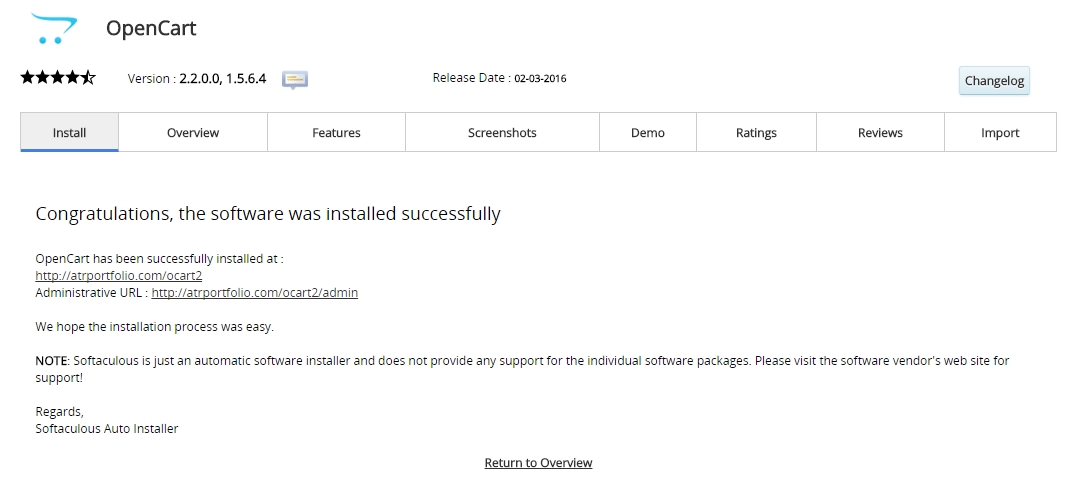
When the installer is done you will see the Congratulations screen stating you successfully installed Open Cart.
When the installer is done you will see the Congratulations screen stating you successfully installed Open Cart.
